
Why You Need a Chrome Screenshot Extension
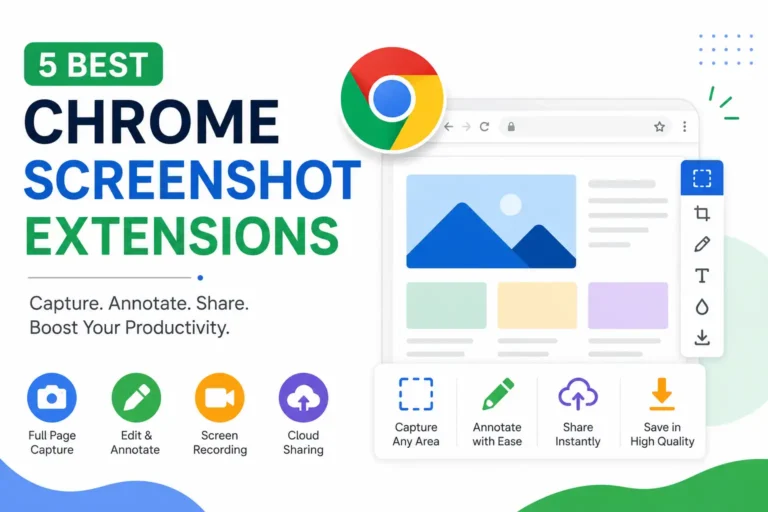
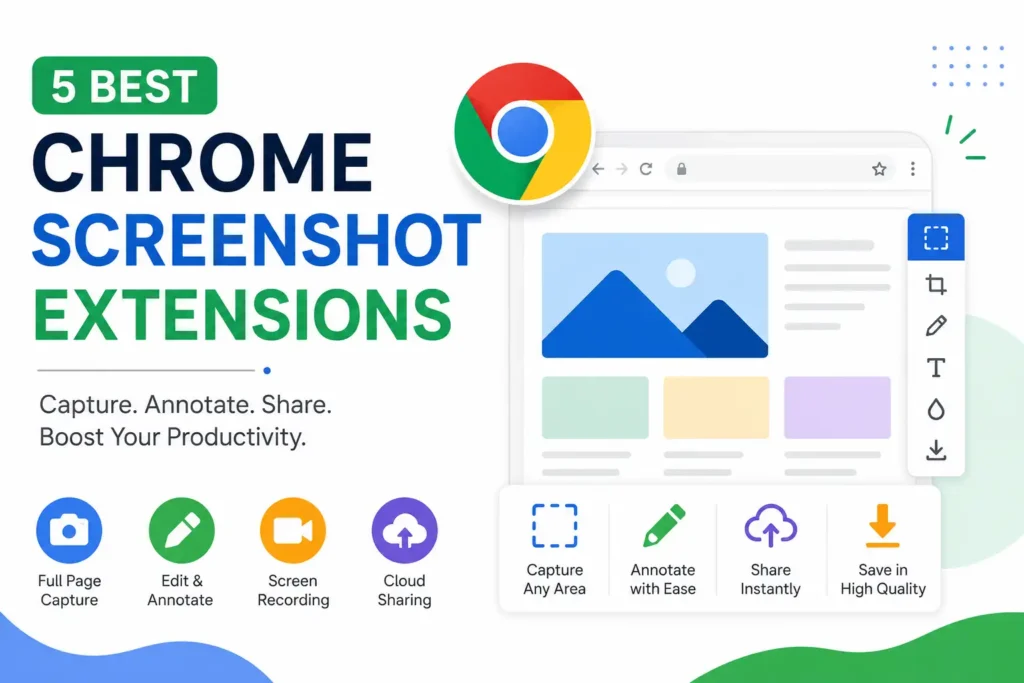
Taking screenshots with Chrome’s built-in tools works for basic tasks, but dedicated screenshot extensions offer far more flexibility and productivity. Whether you create tutorials, review websites, report software bugs, collaborate with remote teams, or save online content for future reference, the right extension can significantly improve your workflow. Many tools capture full-page websites, annotate images, blur sensitive information, record your screen, and instantly share files through cloud storage. According to Google’s Chrome Web Store, screenshot extensions rank among the most downloaded productivity tools because they simplify visual communication while saving valuable time across professional and personal projects.
Key Features to Look for in the Best Screenshot Chrome Extensions
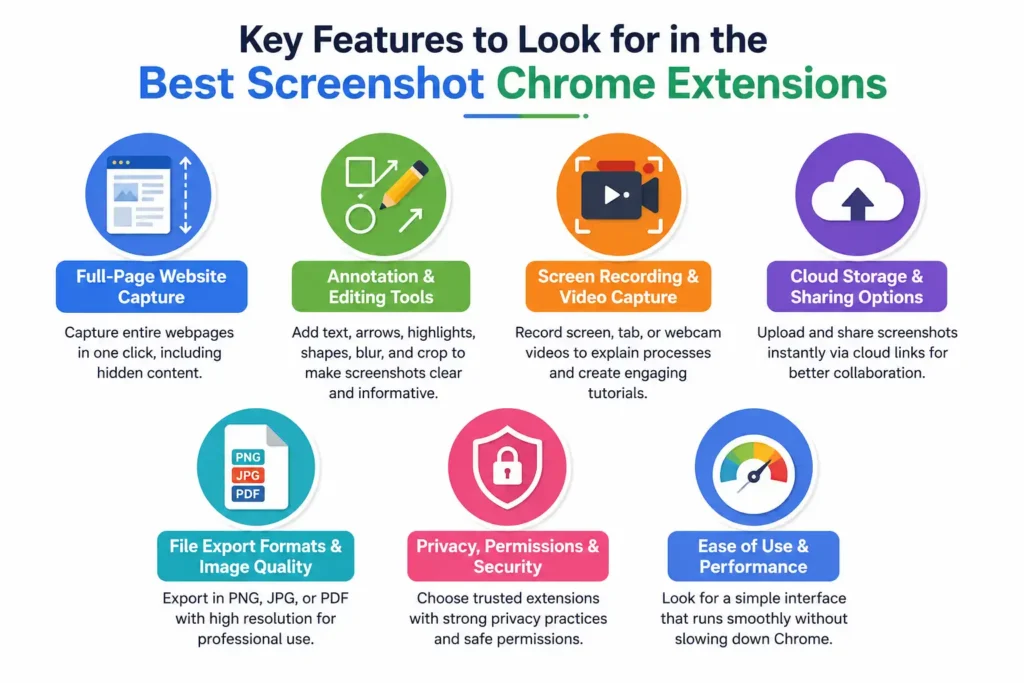
Not every screenshot extension delivers the same experience. Some focus on speed, while others include professional editing, cloud collaboration, and screen recording features. Choosing the right extension depends on your workflow, whether you’re a designer, marketer, developer, educator, or everyday Chrome user. Before installing any tool, evaluate its capture options, editing capabilities, export quality, privacy practices, and overall ease of use. A well-designed extension should reduce manual work, improve productivity, and produce high-quality screenshots without slowing down your browser or requiring complicated setup.
Full-Page Website Capture
Full-page capture lets you save an entire webpage, including sections hidden below the visible screen. This feature is especially useful for designers, SEO professionals, developers, researchers, and content creators who need complete webpage documentation. Instead of stitching multiple screenshots together, one click captures the entire page with consistent quality and accurate formatting.
Annotation and Editing Tools
Built-in editing tools make screenshots more useful by allowing you to add arrows, text, highlights, shapes, blur effects, and crop images before sharing. These annotation features improve communication during bug reporting, presentations, documentation, client feedback, and online collaboration, helping viewers quickly understand the important parts without lengthy written explanations.
Screen Recording and Video Capture
Many modern Chrome screenshot extensions also include screen recording capabilities. You can record browser tabs, desktop screens, or webcam videos while explaining processes step by step. This feature is valuable for software demonstrations, customer support, online training, educational tutorials, and remote team communication where video provides better context than static images.
Cloud Storage and Sharing Options
Cloud integration allows screenshots to be uploaded automatically and shared through secure links instead of large email attachments. Popular extensions support services like Google Drive, Dropbox, and their own cloud platforms. Instant sharing improves collaboration, simplifies project management, and ensures team members always access the latest screenshot version.
File Export Formats and Image Quality
A quality screenshot extension should support multiple export formats including PNG, JPEG, and PDF while preserving image clarity. High-resolution exports are important for presentations, technical documentation, website reviews, and print materials. Flexible export options also make screenshots compatible with different software, publishing platforms, and collaboration tools.
Privacy, Permissions, and Security
Before installing any Chrome extension, review its permissions and privacy policy carefully. Choose extensions from trusted developers with strong user ratings and regular updates. Google’s Chrome Web Store reviews and transparent privacy disclosures help identify reliable tools that responsibly handle captured screenshots without collecting unnecessary personal or browsing information.
5 Best Chrome Extensions for Screenshots
H3: GoFullPage – Best for Capturing Entire Web Pages
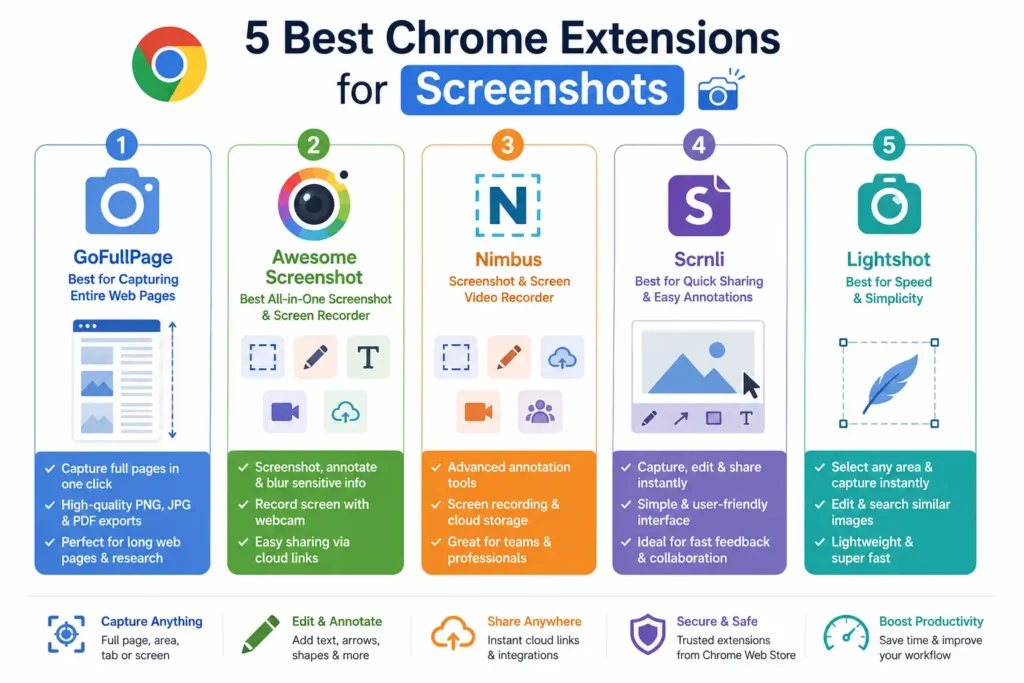
GoFullPage is one of the most trusted Chrome extensions for capturing entire webpages without manually scrolling. It automatically stitches every section into a single high-quality screenshot while preserving the page layout. Users can export captures as PNG, JPEG, or PDF, making it ideal for web designers, SEO professionals, researchers, and technical documentation. Its lightweight design, simple interface, and reliable performance have made it a favorite among professionals who frequently archive or review long web pages.
H3: Awesome Screenshot – Best All-in-One Screenshot and Screen Recorder
Awesome Screenshot combines screenshot capture, annotation, and screen recording in a single extension. Users can blur sensitive information, add arrows, text, highlights, and comments before sharing screenshots through cloud links. It also supports video recording with webcam integration, making it useful for tutorials, bug reporting, remote collaboration, and customer support. With millions of users worldwide, it remains one of the most complete productivity extensions available for Google Chrome.
H3: Nimbus Screenshot & Screen Video Recorder – Best for Advanced Editing
Nimbus Screenshot is designed for users who need advanced editing and professional documentation features. Beyond capturing full webpages and selected regions, it offers powerful annotation tools, screen recording, cloud storage, and team collaboration options. Developers, QA engineers, project managers, and technical writers rely on Nimbus to create detailed reports and visual documentation. Its flexible export options and productivity-focused features make it suitable for both individuals and business teams.
H3: Scrnli – Best for Quick Sharing and Easy Annotations
Scrnli is a user-friendly Chrome extension that makes capturing, editing, and sharing screenshots incredibly simple. It supports full-page captures, visible screen captures, selected areas, and screen recording directly from Chrome. Built-in annotation tools allow users to add text, arrows, shapes, and highlights before saving or sharing images instantly. Its intuitive interface and fast workflow make Scrnli an excellent choice for students, educators, marketers, customer support teams, and remote workers who regularly communicate through visual content.
H3: FireShot – Best for Professional Website Screenshots
FireShot is built for professionals who need accurate and reliable webpage captures. It can save complete webpages as PDF, PNG, or JPEG while maintaining formatting and image quality. Advanced features include annotation tools, printing support, scrolling captures, and integration with popular productivity software. FireShot is widely used by business analysts, compliance teams, researchers, and web professionals who need polished screenshots for reports, presentations, audits, and long-term documentation.
💚 You Might Also Like: What Is Google Ask Gemini? Full 2026 Guide
How to Install and Use a Chrome Screenshot Extension
Installing an Extension from the Chrome Web Store
Open the Chrome Web Store and search for your preferred screenshot extension, such as GoFullPage, Awesome Screenshot, Scrnli, Nimbus, or FireShot. Click Add to Chrome, review the requested permissions, and select Add Extension. After installation, pin the extension to Chrome’s toolbar for quick access whenever you need to capture screenshots.
Capturing Different Types of Screenshots
Most screenshot extensions let you capture the visible browser window, a selected area, the entire screen, or a full scrolling webpage. Simply click the extension icon and choose the capture mode that fits your task. This flexibility makes it easy to document websites, applications, presentations, and online resources efficiently.
Editing, Saving, and Sharing Screenshots
After capturing a screenshot, you can annotate it using text, arrows, shapes, highlights, and blur effects. Most extensions support saving images as PNG, JPEG, or PDF while also offering instant sharing through cloud links, email, or collaboration platforms. These features simplify communication across teams, clients, and online communities.
Common Settings to Customize
Most Chrome screenshot extensions allow you to customize keyboard shortcuts, default save locations, image formats, screenshot quality, and annotation preferences. You can also configure automatic uploads, cloud storage integration, and screen recording options. Personalizing these settings creates a smoother workflow and reduces repetitive tasks during daily use.
Best Use Cases for Chrome Screenshot Extensions
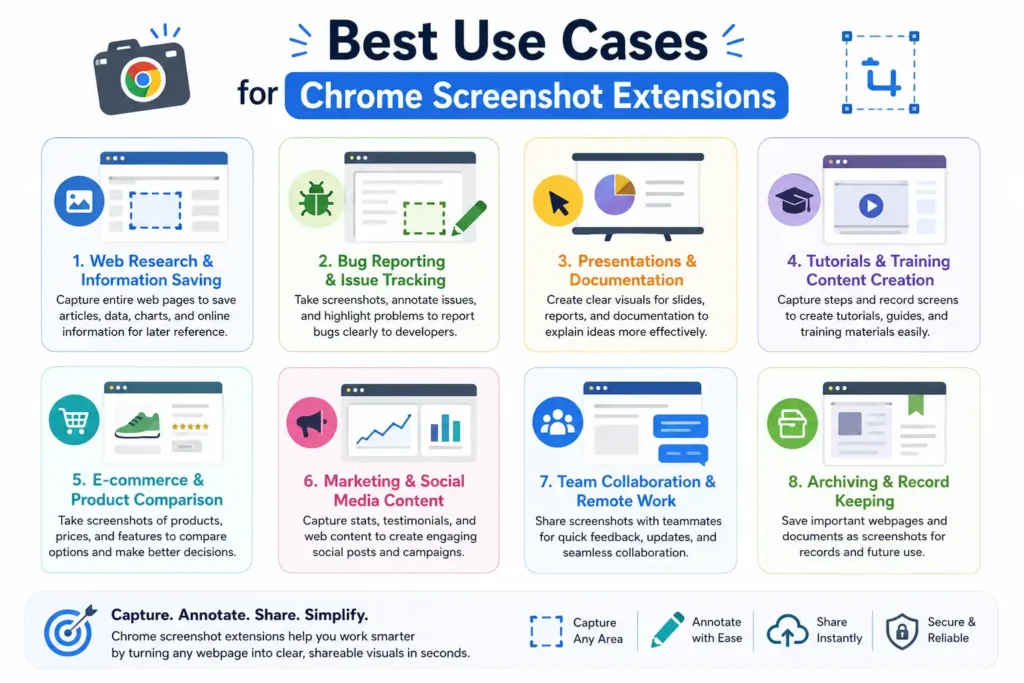
Chrome screenshot extensions have become valuable productivity tools across many industries. They help users capture visual information, explain ideas more clearly, and collaborate efficiently without lengthy written descriptions. From software development and digital marketing to education and customer support, screenshots improve communication by providing instant visual context. Choosing the right extension allows professionals, students, and businesses to save time while creating accurate documentation, tutorials, reports, and presentations that are easy to understand and share with others.
Website and UI Design Reviews
Designers and developers use screenshot extensions to review website layouts, user interfaces, and responsive designs. Annotation tools help highlight design issues, suggest improvements, and provide visual feedback during development. Full-page screenshots also make it easier to document complete websites for quality assurance and client presentations.
Online Tutorials and Documentation
Content creators, educators, and technical writers use screenshots to create step-by-step guides and instructional materials. Adding arrows, highlights, and notes helps readers follow each process more easily. Well-annotated screenshots improve user understanding and reduce confusion in software tutorials, knowledge bases, and training documentation.
Customer Support and Bug Reporting
Support teams rely on screenshots to identify software issues quickly and communicate problems accurately. Annotated screenshots help developers reproduce bugs while enabling customers to explain technical problems clearly. This visual evidence reduces misunderstandings, speeds troubleshooting, and improves the overall support experience for both users and service teams.
Team Collaboration and Remote Work
Remote teams frequently use screenshots to communicate project updates, review designs, and explain tasks without scheduling meetings. Shared screenshots with annotations provide clear visual context, making collaboration faster across Slack, Microsoft Teams, Google Workspace, and other project management platforms used by distributed organizations.
Education, Research, and Note-Taking
Students, teachers, and researchers use screenshot extensions to capture important information from websites, online lectures, digital libraries, and research papers. Organized screenshots make note-taking more efficient while preserving valuable references for assignments, presentations, academic research, and future study sessions.
💚 You Might Also Like: 5 Best PNG to WebP Converters (Fast & Free)
Tips to Get Better Screenshots in Google Chrome
Creating professional screenshots involves more than pressing a capture button. Small adjustments in capture techniques, organization, image optimization, and extension settings can significantly improve screenshot quality and workflow efficiency. Whether you’re documenting websites, creating tutorials, or collaborating with clients, following a few best practices ensures your screenshots remain clear, organized, and easy to share. These practical tips also help maintain consistent image quality while reducing editing time and improving productivity across everyday Chrome browsing tasks.
Capture Full Web Pages Without Missing Content
Use a full-page capture feature instead of taking multiple screenshots and stitching them together manually. This ensures every section of a webpage is captured accurately while maintaining consistent formatting. It’s particularly useful for website audits, SEO analysis, documentation, and design reviews involving long pages.
Use Keyboard Shortcuts for Faster Workflow
Most screenshot extensions support customizable keyboard shortcuts that let you capture screenshots instantly without opening menus. Learning these shortcuts saves time during repetitive tasks and creates a smoother workflow, especially for developers, customer support agents, content creators, and professionals handling frequent documentation.
Organize Screenshots Efficiently
Create folders based on projects, clients, or topics to keep screenshots organized. Use descriptive filenames and consistent naming conventions to locate files quickly later. Cloud synchronization with services like Google Drive or Dropbox further improves accessibility and prevents important screenshots from becoming misplaced.
Keep Extensions Updated for Better Performance
Developers regularly release updates that improve security, browser compatibility, and performance while fixing known bugs. Keeping your screenshot extension updated ensures access to the latest features, better stability, and protection against potential security vulnerabilities. Regular updates also maintain compatibility with the newest versions of Google Chrome.
💚 You Might Also Like: Learn How To Promote Your Business With 9 Proven Tips
Detailed Comparison of the Top 5 Chrome Screenshot Extensions
Choosing the best Chrome screenshot extension depends on your workflow, feature requirements, and budget. Some extensions focus on fast screenshot capture, while others offer advanced editing, screen recording, cloud storage, and collaboration tools. Comparing their capabilities side by side makes it easier to identify the right solution for web design, education, software testing, customer support, or everyday browsing. The five extensions below consistently rank among the most trusted options because they provide reliable performance, regular updates, and user-friendly interfaces that meet the needs of both casual users and professionals.
Features Comparison Table
| Extension | Full-Page Capture | Annotation Tools | Screen Recording | Cloud Sharing | Free Version | Best For |
| GoFullPage | ✅ | Basic | ❌ | Limited | ✅ | Capturing complete webpages |
| Awesome Screenshot | ✅ | Advanced | ✅ | ✅ | ✅ | All-in-one screenshot and recording |
| Nimbus Screenshot | ✅ | Advanced | ✅ | ✅ | ✅ | Professional editing and documentation |
| Scrnli | ✅ | Advanced | ✅ | ✅ | ✅ | Fast sharing and everyday productivity |
| FireShot | ✅ | Advanced | Limited | Limited | ✅ | Professional website documentation |
Free vs Paid Features
Most Chrome screenshot extensions offer generous free plans that cover everyday screenshot needs. Premium versions typically unlock advanced editing tools, unlimited cloud storage, HD screen recording, OCR support, team collaboration, and additional export options. Casual users can usually rely on free versions, while professionals who create documentation or tutorials often benefit from upgrading to paid plans.
Ease of Use and Performance
All five extensions are designed with user-friendly interfaces, but they differ slightly in workflow. GoFullPage is the simplest option for one-click webpage captures, while Scrnli offers an excellent balance of simplicity and editing tools. Awesome Screenshot and Nimbus include more advanced features without sacrificing usability. FireShot delivers reliable performance for large webpages and professional documentation, making it ideal for users who frequently archive or review websites.
Best Extension for Different User Needs
Your ideal extension depends on how you use Chrome each day. GoFullPage is perfect for full-page website captures, while Awesome Screenshot provides the best combination of screenshots and screen recording. Nimbus Screenshot suits professionals who need advanced editing and documentation. Scrnli is ideal for quick captures, annotations, and easy sharing, whereas FireShot excels in creating professional website archives and detailed reports.
Frequently Asked Questions
Which is the best Chrome extension for screenshots?
There isn’t a single best option for everyone because different users have different needs. Awesome Screenshot is an excellent all-around choice thanks to its screenshot capture, annotation tools, and screen recording. If your priority is capturing entire webpages, GoFullPage remains one of the best specialized solutions available.
Are Chrome screenshot extensions free?
Yes. Most popular Chrome screenshot extensions offer free versions with essential features such as visible screen capture, full-page screenshots, and basic editing. Premium subscriptions are available for users who need advanced annotations, unlimited cloud storage, HD recordings, collaboration features, and additional export formats.
Which extension is best for full-page screenshots?
GoFullPage is widely regarded as one of the best Chrome extensions for capturing complete webpages. It automatically scrolls through the page and stitches everything together into a high-quality image or PDF without requiring manual scrolling or multiple screenshots.
Can Chrome screenshot extensions record screens?
Yes. Several modern extensions include built-in screen recording capabilities. Awesome Screenshot, Nimbus Screenshot, and Scrnli allow users to record browser tabs, desktop screens, or webcam videos, making them useful for tutorials, online meetings, software demonstrations, and customer support.
Are screenshot extensions safe to use?
Screenshot extensions are generally safe when downloaded from the official Chrome Web Store and developed by trusted publishers. Before installing any extension, review its permissions, privacy policy, update history, and user ratings. Avoid extensions requesting unnecessary access to personal or browsing data.
Do these extensions work on all websites?
Most screenshot extensions work on the majority of websites and web applications. However, some highly secure pages, browser-protected content, streaming platforms, or internal Chrome pages may restrict screenshot functionality due to Google’s security policies or website-specific protections.
💚 You Might Also Like: Why Is Content Marketing Important? (Complete Guide)
Conclusion
Chrome screenshot extensions have evolved into essential productivity tools for professionals, students, developers, marketers, educators, and everyday users. Whether you need full-page webpage captures, advanced annotations, screen recording, or quick sharing, there is an extension designed for your workflow. GoFullPage, Awesome Screenshot, Nimbus Screenshot, Scrnli, and FireShot each offer unique strengths that cater to different use cases. Compare their features, try the free versions, and choose the extension that best fits your needs to capture, edit, and share screenshots more efficiently while improving your overall productivity.
✨ Don’t stop here, follow Milyom for daily upgrades.