
Introduction
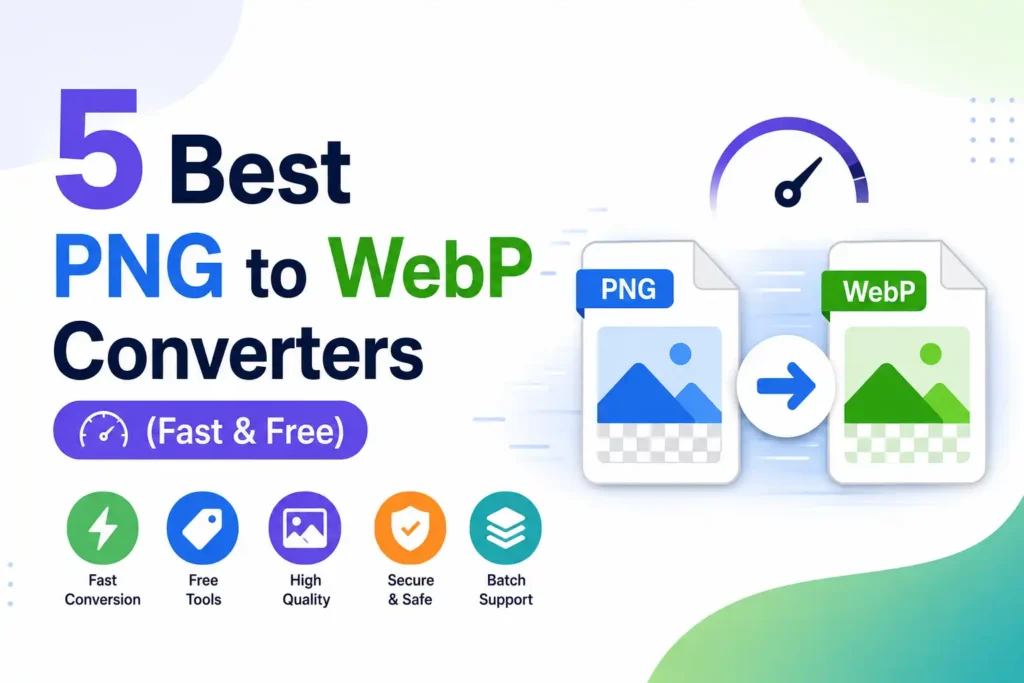
Image optimization has become a critical part of modern website performance. Large image files slow page loading, increase bandwidth usage, and can negatively affect both user experience and search engine rankings. One of the easiest ways to improve image performance is by converting PNG files into WebP format. Developed by Google, WebP delivers significantly smaller file sizes while maintaining excellent visual quality. Whether you manage a blog, eCommerce store, portfolio, or business website, choosing the right PNG to WebP converter helps you optimize images quickly without sacrificing quality or transparency. This guide reviews the most reliable platforms available today.
What Is PNG and Why Should You Convert It to WebP?
PNG (Portable Network Graphics) is a popular image format known for lossless compression and transparent backgrounds. It is widely used for logos, icons, screenshots, and graphics requiring sharp details. However, PNG files are often much larger than newer image formats. Google’s WebP format supports both lossless and lossy compression while preserving transparency, making it a smarter choice for modern websites. According to Google Developers, WebP images are typically 25% to 34% smaller than comparable JPEGs and around 26% smaller than PNGs in lossless mode, helping websites load faster and improve Core Web Vitals.
Benefits of Converting PNG Images into WebP
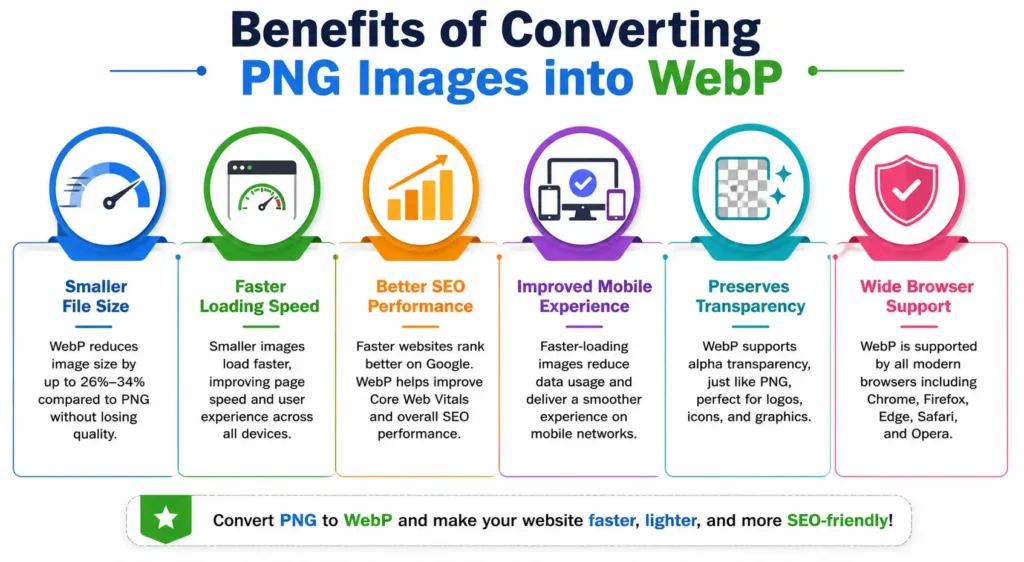
Converting PNG images to WebP provides measurable advantages for both website owners and visitors. Smaller image files reduce page load times, lower server bandwidth usage, and improve mobile browsing experiences. Faster websites often experience better engagement, lower bounce rates, and stronger SEO performance because page speed is a confirmed Google ranking factor. WebP also preserves alpha transparency, making it an excellent replacement for PNG graphics. Most modern browsers, including Chrome, Edge, Firefox, Safari, and Opera, now support WebP, making it a practical image format for websites, blogs, online stores, and digital marketing campaigns.
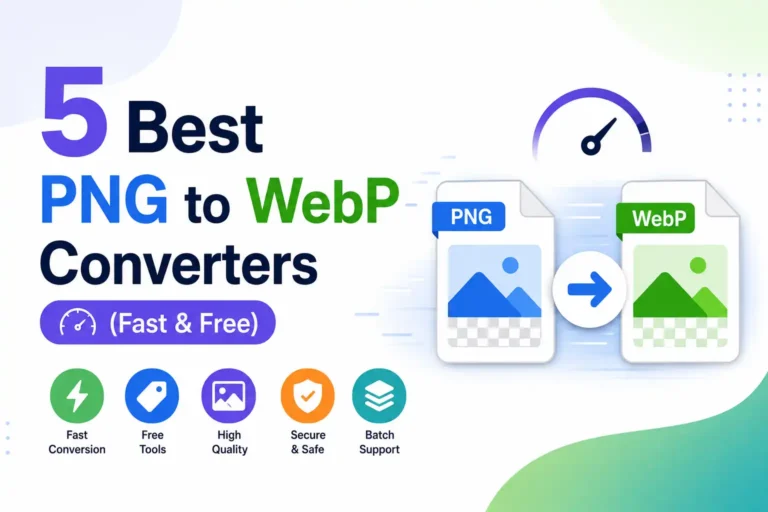
5 Best PNG to WebP Converters (Fast & Free)
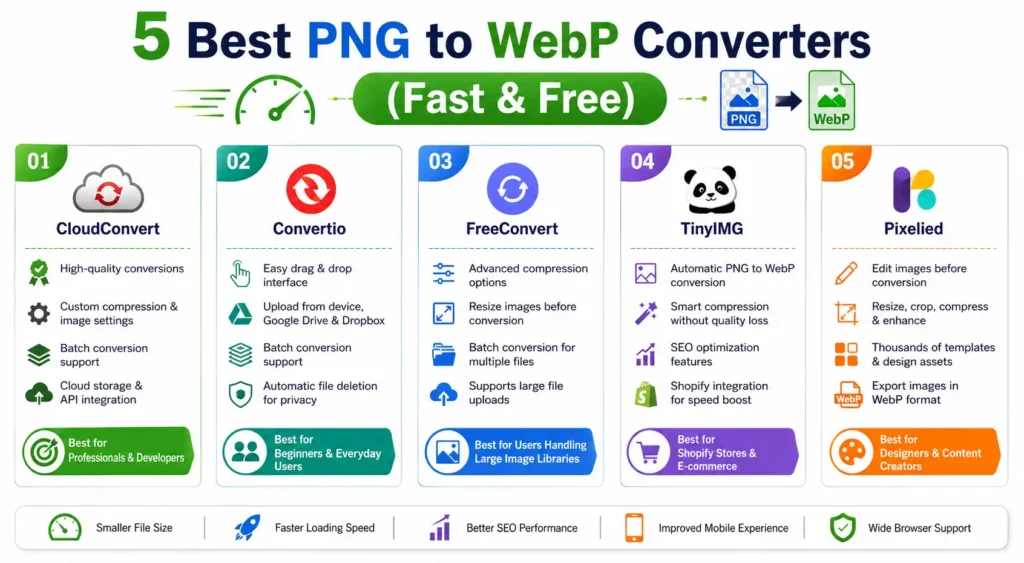
1. CloudConvert
CloudConvert is one of the most trusted online file conversion platforms, supporting more than 200 file formats, including high-quality PNG to WebP conversion. The platform performs conversions securely in the cloud, allowing users to customize output settings such as image quality, compression level, width, and metadata. Its clean interface makes conversions simple for beginners while offering advanced configuration options for professionals. CloudConvert also provides API access for developers who need automated image conversion workflows, making it suitable for businesses handling large numbers of digital assets.
Key Features
CloudConvert offers customizable compression settings, adjustable image dimensions, metadata control, batch processing, and cloud storage integrations with Google Drive, Dropbox, and OneDrive. Developers can also automate conversions using its powerful REST API. Secure processing and multiple output options make it suitable for both individuals and professional teams.
Pros and Cons
CloudConvert delivers excellent image quality, advanced customization, reliable security, and supports hundreds of file formats. The interface is intuitive and works across devices. However, free users receive limited daily conversion credits, and some advanced features require a paid subscription for unlimited usage.
Best For
CloudConvert is ideal for web developers, SEO professionals, bloggers, designers, and businesses needing high-quality image conversions with advanced customization. It is particularly valuable for users managing multiple websites or automated workflows where consistent image optimization and professional output quality are essential.
2. Convertio
Convertio is another well-established online converter that simplifies PNG to WebP conversion with an easy drag-and-drop interface. Since the entire conversion process happens in the cloud, users do not need to install software. Convertio supports uploads from local devices as well as Google Drive and Dropbox. The platform automatically deletes uploaded files after a limited period to enhance privacy. With support for hundreds of file formats, Convertio has become a popular choice for users looking for fast, convenient, and reliable online image conversion.
Key Features
Convertio supports cloud uploads, batch conversions, drag-and-drop functionality, browser-based processing, and customizable image quality settings. Files can be imported directly from Google Drive or Dropbox, while automatic file deletion enhances user privacy after completed conversions.
Pros and Cons
Convertio is simple to use, requires no installation, supports many file formats, and works smoothly on desktop and mobile devices. The main limitation is its free file size restriction, while larger conversions and higher usage limits require a premium subscription.
Best For
Convertio is best suited for casual users, students, freelancers, bloggers, and small businesses that need quick online PNG to WebP conversions without learning advanced settings. Its straightforward interface makes image optimization accessible even for complete beginners.
💚 You Might Also Like: Tracqueur: Complete Guide to Tracking & Analytics
3. FreeConvert
FreeConvert focuses on delivering powerful online file conversion tools while giving users greater control over image optimization. During PNG to WebP conversion, users can adjust compression levels, resize images, preserve metadata, and optimize output quality based on specific requirements. The platform emphasizes security by encrypting uploaded files and automatically deleting them after processing. With support for large file uploads and batch conversions, FreeConvert is a practical solution for photographers, designers, marketers, and website owners managing extensive image collections.
Pros and Cons
FreeConvert provides flexible optimization settings, supports larger files than many competitors, and offers secure processing. Batch conversion saves valuable time for large projects. However, occasional advertisements appear on the free version, and premium plans unlock higher usage limits.
Best For
FreeConvert is ideal for photographers, graphic designers, digital marketers, eCommerce businesses, and website owners handling large image libraries.
4. TinyIMG PNG to WebP Converter
TinyIMG PNG to WebP Converter is designed primarily for website owners, especially Shopify merchants, who want to improve site speed without compromising image quality. The platform automatically compresses and converts PNG images into optimized WebP files while preserving transparency and visual clarity. Besides image conversion, TinyIMG offers built-in SEO optimization features, including automatic image alt text generation, metadata management, and broken link detection. Its focus on eCommerce performance makes it more than just an image converter, helping online stores improve loading speeds and user experience while supporting better search engine visibility.
Key Features
TinyIMG provides automatic PNG to WebP conversion, intelligent image compression, transparency preservation, batch optimization, Shopify integration, SEO image optimization, automatic alt text generation, metadata management, and website performance monitoring. These features simplify image optimization while helping improve page speed and search visibility.
Pros and Cons
TinyIMG offers excellent optimization for Shopify stores, preserves image quality, automates SEO tasks, and improves website performance with minimal effort. It is beginner-friendly and requires little technical knowledge. However, many advanced features are tailored specifically for Shopify, making it less versatile for users on other website platforms.
Best For
TinyIMG is best for Shopify store owners, eCommerce businesses, digital marketers, and small business websites looking to improve page speed and image SEO simultaneously. It is especially valuable for stores managing hundreds of product images that require automatic optimization with minimal manual work.
💚 You Might Also Like: Learn How To Promote Your Business With 9 Proven Tips
5. Pixelied
Pixelied combines image editing and format conversion into one easy-to-use online platform. Instead of simply converting PNG files to WebP, users can edit, resize, crop, compress, and enhance images before exporting them in WebP format. The platform also includes thousands of templates, icons, illustrations, and design assets, making it useful for content creators and marketing teams. Its browser-based interface eliminates the need for software installation, allowing users to create optimized web-ready graphics from virtually any device with internet access.
Key Features
Pixelied includes PNG to WebP conversion, online image editing, background removal, resizing, cropping, compression tools, drag-and-drop editing, brand templates, stock assets, and collaborative design features. Everything works directly within the browser, making image optimization fast and convenient.
Pros and Cons
Pixelied combines graphic design and image conversion in one platform, making content creation highly efficient. Its intuitive interface suits beginners while offering useful editing tools. However, advanced design features require a paid plan, and professional designers may find fewer customization options than dedicated editing software.
Best For
Pixelied is ideal for bloggers, content creators, social media managers, startups, and marketing teams that need both image editing and PNG to WebP conversion. It works particularly well for users creating website graphics, blog visuals, and digital marketing assets from one platform.
PNG to WebP Platforms Comparison Table
| Feature | CloudConvert | Convertio | FreeConvert | TinyIMG | Pixelied |
| Free Version | Yes | Yes | Yes | Yes | Yes |
| Batch Conversion | Yes | Yes | Yes | Yes | Limited |
| Custom Compression | Yes | Yes | Yes | Automatic | Basic |
| Preserve Transparency | Yes | Yes | Yes | Yes | Yes |
| Image Editing Tools | No | No | Basic | No | Yes |
| Cloud Storage Support | Yes | Yes | Limited | No | No |
| API Access | Yes | No | Limited | No | No |
| Shopify Integration | No | No | No | Yes | No |
| Best For | Developers & Professionals | Beginners | Large Image Libraries | Shopify Stores | Content Creators |
Best Practices for Converting PNG to WebP Without Losing Quality
Converting PNG images to WebP is more than simply changing the file format. Using the right settings helps preserve image quality while maximizing file size reduction. According to Google’s WebP documentation, selecting appropriate compression settings can significantly reduce file sizes without noticeable visual differences. Whether you are optimizing product photos, logos, illustrations, or website graphics, following proven best practices ensures your images remain sharp, transparent, and fast-loading across all modern browsers. These techniques also improve Core Web Vitals and create a better browsing experience for desktop and mobile users.
Choose the Right Compression Level
Avoid selecting the highest compression setting simply to achieve the smallest file size. Moderate compression often produces the best balance between visual quality and performance. Test multiple quality levels and compare the output before publishing important website images or product graphics.
Preserve Transparency
If your PNG images contain transparent backgrounds, ensure the converter preserves the alpha channel during WebP conversion. Most quality converters support transparent WebP images, allowing logos, icons, and interface graphics to maintain their original appearance without adding unwanted backgrounds.
Optimize Images for Websites
Resize oversized images before converting them to WebP. Uploading images larger than their display dimensions wastes bandwidth and slows loading times. Combine proper image dimensions with WebP compression to create lightweight images that improve website speed, SEO performance, and user experience.
Batch Convert Large Image Libraries
For websites containing hundreds or thousands of images, batch conversion saves significant time while maintaining consistent optimization settings. Platforms supporting bulk processing allow businesses to convert entire image libraries efficiently, ensuring faster workflows and standardized image quality across every webpage.
Frequently Asked Questions About PNG to WebP Conversion
Does WebP Reduce Image Quality?
Not necessarily. WebP supports both lossy and lossless compression, allowing you to control the balance between image quality and file size. When appropriate compression settings are used, most users cannot visually distinguish WebP images from the original PNG files while benefiting from significantly smaller file sizes.
Is WebP Better Than PNG for Websites?
Yes, in most situations. WebP creates much smaller image files while maintaining excellent visual quality, resulting in faster page loading and improved Core Web Vitals. Since website speed influences user experience and SEO, WebP is generally the better choice for websites, blogs, and eCommerce stores.
Can WebP Keep Transparent Backgrounds?
Yes, this makes it ideal for logos, icons, illustrations, product images, and interface graphics that require transparent backgrounds. Most modern PNG to WebP converters preserve transparency automatically during the conversion process.
Which PNG to WebP Converter Is Completely Free?
Several platforms offer free PNG to WebP conversion, including FreeConvert, Convertio, CloudConvert, and Pixelied. While free versions may have daily limits or file size restrictions, they are sufficient for most personal projects, blogs, and small business websites requiring occasional image optimization.
Can I Convert Multiple PNG Files at Once?
Yes. Many online converters support batch conversion, allowing you to upload and convert dozens or even hundreds of PNG images simultaneously. Platforms like CloudConvert, FreeConvert, and TinyIMG help save time by processing multiple files while applying consistent optimization settings across every image.
Is It Safe to Use Online PNG to WebP Converters?
Reputable converters are generally safe when they use encrypted file transfers and automatically delete uploaded files after processing. Always choose trusted platforms with transparent privacy policies and avoid uploading confidential or sensitive images to unknown websites that lack proper security practices.
💚 You Might Also Like: Why Is Content Marketing Important? (Complete Guide)
Conclusion
Choosing the right PNG to WebP converter can significantly improve your website’s speed, user experience, and search engine performance. Whether you need advanced customization with CloudConvert, beginner-friendly simplicity through Convertio, powerful optimization from FreeConvert, Shopify-focused automation with TinyIMG, or built-in editing features from Pixelied, each platform offers unique advantages. Evaluate your workflow, budget, and image optimization needs before making a decision. By converting PNG images to WebP using trusted tools and following best practices, you can reduce file sizes, preserve image quality, and create a faster, more SEO-friendly website that delivers a better experience for every visitor.
✨ Let’s keep your learning streak alive. Follow Milyom.