
Introduction
Google Slides has become one of the most widely used presentation tools for businesses, educators, students, and remote teams. As part of Google Workspace, it allows users to create, edit, and share presentations directly from a web browser without installing software. Its cloud-based structure makes collaboration simple, enabling multiple people to work on the same presentation simultaneously. Whether you are preparing a business proposal, classroom lecture, sales pitch, or project update, Google Slides provides the flexibility and accessibility needed in modern workplaces. Understanding its features can help users create more effective and engaging presentations with less effort.
What Is Google Slides and How Does It Work?
Google Slides is a web-based presentation application developed by Google that allows users to create professional slide decks online. It works through cloud storage, meaning presentations are automatically saved to Google Drive and can be accessed from almost any internet-connected device. Users can start from scratch or use built-in templates to speed up the design process. The platform supports text, images, videos, charts, and animations, making it suitable for various presentation needs. Because files are stored online, teams can collaborate in real time, reducing the need for multiple presentation versions and manual file sharing.
Key Features of Google Slides
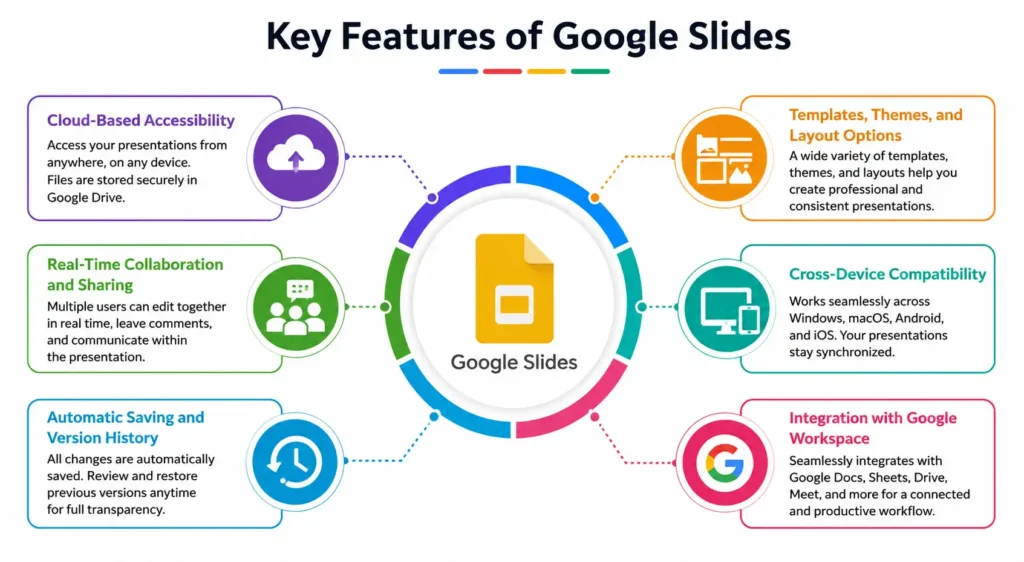
Google Slides includes a wide range of features designed to simplify presentation creation while improving collaboration. Its cloud-first architecture enables users to work from anywhere and keep files synchronized across devices. Teams can edit presentations together, leave comments, and track changes without switching between different tools. Automatic saving minimizes the risk of losing work, while customizable themes help maintain consistent branding and design. The platform also integrates seamlessly with other Google Workspace applications, creating a connected environment for communication and productivity. These capabilities make Google Slides a practical choice for both individuals and organizations.
Cloud-Based Accessibility
One of the biggest advantages of Google Slides is its cloud-based accessibility. Presentations are stored in Google Drive, allowing users to access files from desktops, laptops, tablets, or smartphones. This flexibility supports remote work, hybrid teams, and users who frequently switch devices. Since files are stored online, updates are instantly synchronized and available whenever needed.
Real-Time Collaboration and Sharing
Google Slides allows multiple users to edit the same presentation simultaneously. Team members can view changes as they happen, leave comments, and communicate directly within the document. This collaborative approach reduces delays and eliminates confusion caused by sending multiple file versions. It is especially useful for organizations that rely on teamwork and fast decision-making.
Automatic Saving and Version History
Every change made in Google Slides is automatically saved, helping prevent data loss caused by unexpected interruptions. The platform also includes version history, allowing users to review previous edits and restore earlier versions when necessary. This feature provides transparency during collaborative projects and makes it easier to track contributions from different team members.
Templates, Themes, and Layout Options
Google Slides offers a variety of templates, themes, and layout options that simplify presentation design. Users can quickly create professional-looking slides without advanced design skills. Consistent formatting improves readability and visual appeal, while customizable themes allow organizations to align presentations with their branding guidelines and communication standards.
Cross-Device Compatibility
Google Slides works across multiple operating systems and devices, including Windows, macOS, Android, and iOS. This compatibility ensures users can create, edit, and present content regardless of their preferred hardware. Presentations remain synchronized through the cloud, making transitions between devices smooth and reducing workflow disruptions.
How to Create a Presentation in Google Slides
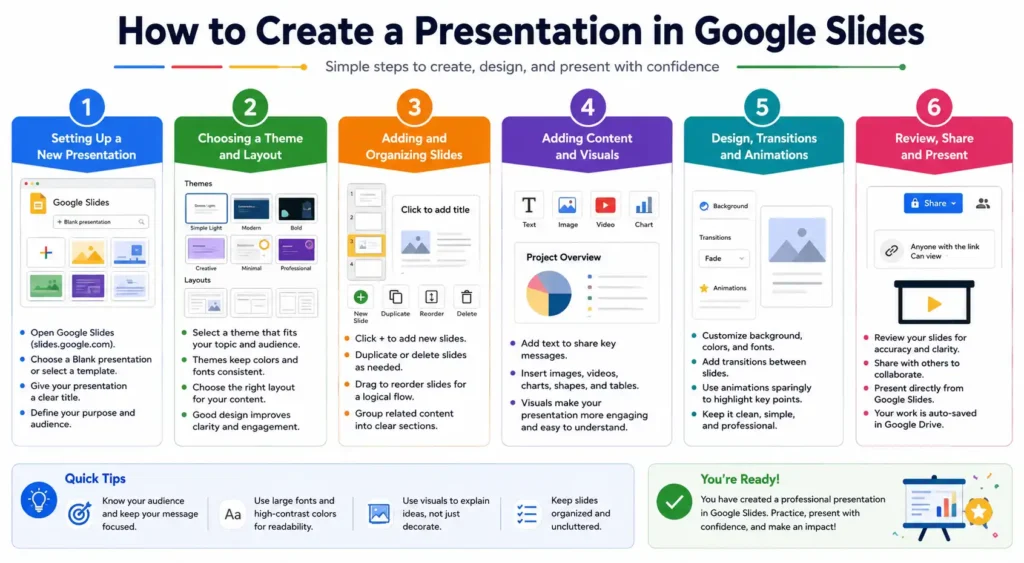
Creating a presentation in Google Slides is straightforward, even for beginners. Users can start by opening Google Slides through a browser and selecting a blank presentation or a ready-made template. From there, slides can be added, organized, and customized with various design elements. Text, images, videos, and charts can be inserted to enhance communication and support key messages. Since presentations are automatically saved to Google Drive, file management remains simple throughout the creation process. Following a structured workflow helps ensure presentations remain organized, visually appealing, and effective for the intended audience.
Setting Up a New Presentation
To begin, open Google Slides and select either a blank presentation or a pre-designed template. Giving the presentation a clear title helps with organization and future retrieval. Starting with a defined purpose and audience in mind can also guide content structure and design decisions throughout the presentation creation process.
Choosing a Theme and Layout
Selecting an appropriate theme establishes the overall visual style of the presentation. Google Slides provides various built-in themes that maintain consistency across slides. Choosing suitable layouts helps organize information logically and improves readability. A well-structured design allows audiences to focus on key messages without unnecessary distractions.
Adding and Organizing Slides
Slides can be added, duplicated, rearranged, or grouped to create a logical presentation flow. Organizing content into clear sections improves audience understanding and retention. Using descriptive slide titles and maintaining a consistent structure makes presentations easier to navigate while supporting a more professional appearance.
Inserting Text, Images, and Media
Google Slides supports a wide range of content types, including text, images, videos, charts, and diagrams. Combining visual elements with concise messaging helps communicate ideas more effectively. High-quality visuals can improve audience engagement, while multimedia components add variety and support storytelling throughout the presentation.
Saving and Managing Presentations
Google Slides automatically saves presentations to Google Drive, eliminating the need for manual saving. Users can organize files within folders, share access with collaborators, and manage permissions as needed. This centralized storage system simplifies document management while ensuring presentations remain accessible, secure, and easy to update.
✨ Discover More Articles: 5 Best Tools to Grow Your Business in 2026
Essential Google Slides Tools and Functions
Google Slides includes several built-in tools that help users create more organized, engaging, and professional presentations. Beyond basic slide creation, the platform offers advanced functionality for managing layouts, presenting content effectively, and improving audience interaction. Features such as Slide Master, Presenter View, animations, hyperlinks, and data visualization tools make it easier to communicate ideas clearly. These functions help users maintain design consistency, improve presentation flow, and create a better viewing experience. Understanding how to use these tools efficiently can significantly improve presentation quality while saving valuable time during the design process.
Slide Master and Layout Management
Slide Master allows users to control the design and formatting of an entire presentation from one location. Changes made to fonts, colors, logos, or layouts automatically apply across multiple slides. This feature helps maintain visual consistency, reduces repetitive editing, and is especially valuable for businesses that follow strict branding guidelines.
Speaker Notes and Presenter View
Speaker Notes help presenters add private talking points beneath slides without displaying them to the audience. Presenter View provides access to notes, slide previews, and timing controls during live presentations. These tools improve presentation delivery by helping speakers stay organized, confident, and focused on key discussion points.
Transitions and Animations
Transitions and animations add movement to presentations and help guide audience attention. Users can create smooth slide changes and reveal information gradually. When used strategically, these visual effects improve engagement and storytelling. However, excessive animations can become distracting, so maintaining a balanced approach is recommended.
Hyperlinks and Interactive Elements
Google Slides allows users to insert hyperlinks, buttons, and clickable objects that improve navigation. Interactive presentations can direct viewers to specific slides, websites, documents, or external resources. These elements are particularly useful for training materials, educational presentations, product demonstrations, and self-guided presentations that require audience interaction.
Charts, Tables, and Diagrams
Visualizing information through charts, tables, and diagrams makes complex data easier to understand. Google Slides integrates with Google Sheets, allowing users to import and update charts automatically. Well-designed visuals improve information retention and help audiences quickly identify trends, comparisons, and key insights within presentations.
How to Collaborate Using Google Slides
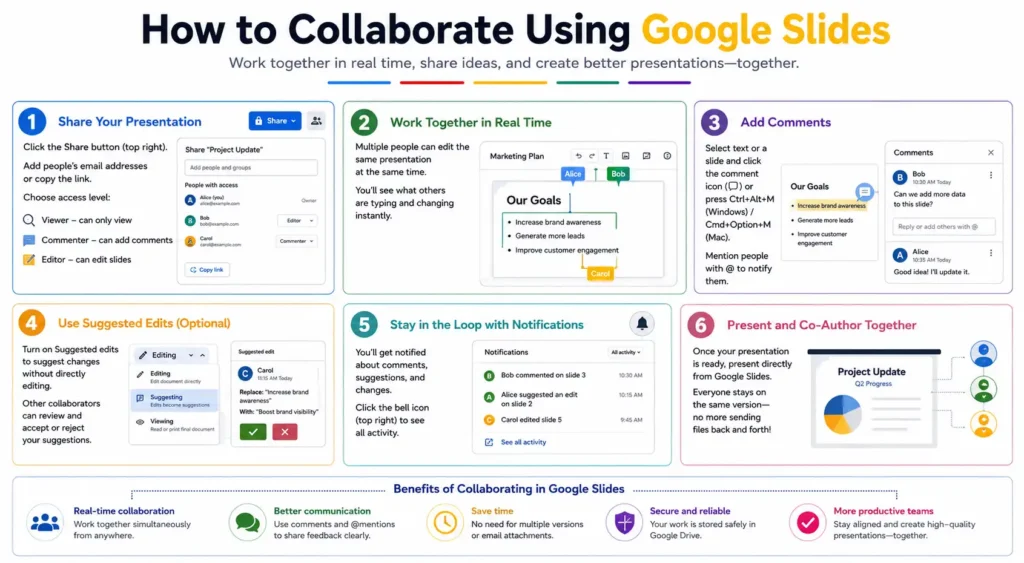
Collaboration is one of the strongest advantages of Google Slides. The platform enables multiple users to work on presentations simultaneously, regardless of location. Team members can share files, provide feedback, suggest edits, and monitor changes in real time. This collaborative workflow improves communication, speeds up project completion, and reduces version-control issues often associated with traditional presentation software. Whether teams are working remotely or in the same office, Google Slides provides the tools needed for seamless cooperation. Effective collaboration features make it an ideal solution for businesses, educators, and project teams that value efficiency.
Sharing Presentations with Team Members
Google Slides makes sharing presentations simple through customizable sharing links and email invitations. Users can instantly grant access to colleagues, clients, or stakeholders without sending attachments. This streamlined sharing process improves productivity and ensures everyone works from the most current version of the presentation.
Managing Access Permissions
Access permissions allow presentation owners to control who can view, comment on, or edit a file. This flexibility helps protect important content while enabling collaboration when necessary. Proper permission management improves document security and prevents unauthorized changes that could impact presentation accuracy or quality.
Commenting and Suggesting Changes
The commenting feature allows team members to leave feedback directly on slides. Users can ask questions, suggest improvements, and resolve discussions within the presentation itself. This centralized communication process reduces reliance on external emails and helps teams make revisions more efficiently during collaborative projects.
Real-Time Editing and Team Collaboration
Google Slides supports simultaneous editing, allowing multiple contributors to work on a presentation at the same time. Changes appear instantly, helping teams coordinate more effectively. Real-time collaboration reduces delays, encourages faster decision-making, and improves overall project workflow, especially for distributed and remote teams.
Tracking Revisions with Version History
Version History records changes made to a presentation over time. Users can review previous edits, identify contributors, and restore earlier versions if needed. This feature improves accountability and provides a safety net during collaborative projects, ensuring valuable content can be recovered when necessary.
✨ Discover More Articles: 5 Best Writing Tools in 2026 for Better Content
Best Practices for Designing Professional Google Slides Presentations
A well-designed presentation improves audience understanding and strengthens message delivery. Effective slide design focuses on clarity, consistency, and visual balance rather than excessive decoration. Professional presentations use structured layouts, readable typography, meaningful visuals, and limited text to maintain audience attention. Research from cognitive learning studies consistently shows that visual organization can improve information retention and comprehension. By following design best practices, presenters can create slides that support their message rather than compete with it. Applying these principles helps presentations look polished, credible, and easier for audiences to follow from start to finish.
Creating a Clear Visual Hierarchy
Visual hierarchy helps audiences identify the most important information on a slide. Larger headings, strategic spacing, and consistent formatting guide attention naturally. Organizing content according to importance improves readability and allows viewers to process information more efficiently without becoming overwhelmed by excessive details.
Choosing Effective Fonts and Colors
Fonts and colors play a major role in presentation readability and professionalism. Using simple, easy-to-read fonts combined with high-contrast color combinations improves visibility. Maintaining a consistent color palette throughout the presentation also strengthens branding and creates a more polished visual experience.
Using Images and Graphics Correctly
High-quality images and graphics help explain concepts while making presentations more engaging. Visuals should support the message rather than serve as decoration. Relevant images, icons, and illustrations can simplify complex topics, improve audience understanding, and create stronger connections with key presentation points.
Avoiding Common Presentation Design Mistakes
Common presentation mistakes include overcrowded slides, inconsistent formatting, poor color choices, and excessive animations. These issues can distract audiences and reduce message effectiveness. Keeping slides clean, focused, and visually balanced helps maintain professionalism while making information easier to understand and remember.
Improving Audience Engagement
Audience engagement increases when presentations include storytelling, visuals, interactive elements, and clear messaging. Asking questions, using relatable examples, and presenting information in a structured format can help maintain attention. Engaged audiences are more likely to absorb information and retain key insights after the presentation ends.
Advanced Google Slides Features You Should Know
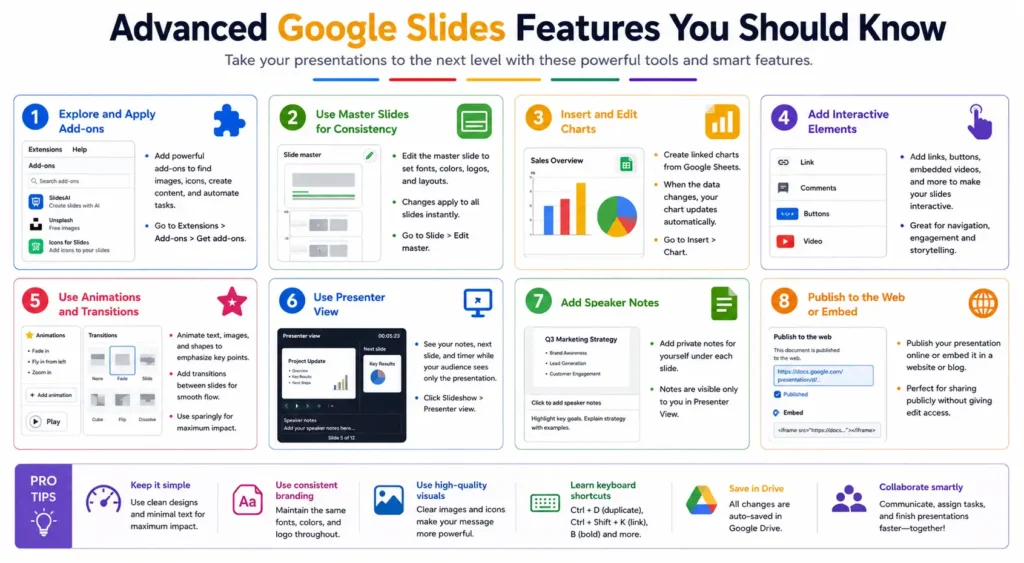
While many users rely on basic presentation tools, Google Slides offers several advanced features that can improve productivity and presentation effectiveness. From multimedia integration to workflow automation, these capabilities help users create more dynamic and efficient presentations. Advanced functions support better audience interaction, streamline repetitive tasks, and connect presentations with other Google Workspace tools. As organizations increasingly adopt digital collaboration environments, leveraging these features can provide a competitive advantage. Learning advanced Google Slides functionality allows users to maximize the platform’s potential and create presentations that are both engaging and highly professional.
Embedding Videos and Audio
Google Slides supports embedded videos from YouTube and other sources, allowing presenters to include multimedia content directly within slides. Videos can enhance storytelling, explain concepts more effectively, and improve audience engagement. Adding relevant audio or narration can further strengthen presentations and create a more immersive experience.
Using Add-Ons and Extensions
Add-ons extend the capabilities of Google Slides by introducing additional design, productivity, and workflow features. Users can access tools for graphic design, diagram creation, image editing, and content management. These integrations help streamline presentation development and improve overall efficiency for frequent users.
Creating Interactive Presentations
Interactive presentations encourage audience participation through clickable navigation, embedded resources, quizzes, and linked content. These features transform traditional slide decks into engaging experiences. Interactive presentations are especially valuable for training programs, educational content, product demonstrations, and self-paced learning environments.
Linking Google Workspace Apps
Google Slides integrates seamlessly with Google Workspace applications such as Google Docs, Sheets, Drive, and Forms. This connectivity improves workflow efficiency by enabling users to share data, update information, and access supporting resources without switching between multiple platforms or software environments.
Automating Presentation Workflows
Automation tools help reduce repetitive tasks associated with presentation creation and management. Users can connect Google Slides with workflow platforms and integrations to automatically update data, generate reports, and streamline collaboration processes. Automation improves efficiency while allowing teams to focus on higher-value activities.
✨ Discover More Articles: 5 Best Workforce Tools for Businesses in 2026
Google Slides Tips, Tricks, and Shortcuts for Better Productivity
Google Slides is easy to use, but mastering a few productivity techniques can significantly improve efficiency. Small adjustments to workflow, collaboration habits, and design practices can save time while producing better results. Keyboard shortcuts help users work faster, while presentation management strategies reduce repetitive tasks. Effective collaboration methods keep teams aligned and minimize communication delays. Design-focused techniques can also improve slide quality without requiring advanced graphic design skills. Whether creating presentations occasionally or daily, applying proven productivity tips allows users to work smarter, maintain consistency, and deliver more polished presentations with less effort.
Time-Saving Keyboard Shortcuts
Keyboard shortcuts help users complete common tasks faster without constantly switching between the keyboard and mouse. Actions such as copying, duplicating slides, formatting text, and navigating presentations become more efficient. Learning a handful of frequently used shortcuts can significantly speed up presentation creation while improving overall productivity.
Presentation Workflow Optimization
An organized workflow makes presentation development faster and more manageable. Creating an outline before designing slides, using templates, and grouping related content helps maintain structure. Consistent workflows reduce errors, improve efficiency, and make it easier to update presentations as information changes over time.
Collaboration Efficiency Tips
Effective collaboration starts with clear responsibilities and communication. Assigning slide sections, using comments for feedback, and reviewing updates regularly can reduce confusion. Teams that follow organized collaboration practices often complete presentations faster while maintaining consistency and reducing unnecessary revisions throughout the project lifecycle.
Design Improvement Hacks
Simple design improvements can dramatically enhance presentation quality. Maintaining consistent spacing, limiting text, using visual elements strategically, and applying a cohesive color palette create a cleaner appearance. Small design adjustments often have a significant impact on audience perception and help presentations look more professional.
Expert Recommendations for Creating Better Slides
Presentation experts often recommend focusing on clarity rather than complexity. Slides should support the speaker’s message instead of overwhelming audiences with information. Using concise text, meaningful visuals, and a logical flow improves understanding. Consistently reviewing slides from the audience’s perspective can further enhance presentation effectiveness.
Frequently Asked Questions About Google Slides
Is Google Slides Free to Use?
Yes, Google Slides is free for anyone with a Google account. Users can create, edit, share, and present slides without purchasing software. Additional business-focused features may be available through Google Workspace plans, but the core presentation functionality remains accessible at no cost.
Can Google Slides Be Used Offline?
Google Slides supports offline functionality when enabled through Google Drive settings. Users can access and edit presentations without an internet connection, and changes are automatically synchronized once connectivity is restored. This feature is useful for travelers, remote workers, and users with unreliable internet access.
How Secure Is Google Slides?
Google Slides benefits from Google’s security infrastructure, including encrypted data transmission, account protection features, and permission-based access controls. Users can manage sharing settings and restrict editing rights when necessary. Following strong security practices further enhances the protection of sensitive presentation content.
Can Google Slides Replace PowerPoint?
For many users, Google Slides can effectively replace PowerPoint, especially when collaboration and cloud accessibility are priorities. While PowerPoint offers some advanced design and animation capabilities, Google Slides provides sufficient functionality for most educational, business, and professional presentation requirements.
What Are the Main Benefits of Using Google Slides?
The primary benefits of Google Slides include cloud accessibility, real-time collaboration, automatic saving, cross-device compatibility, and integration with Google Workspace applications. These advantages make presentation creation more efficient while supporting teamwork, flexibility, and productivity across a wide range of use cases.
✨ Discover More Articles: Best Content Marketing Tools for Growth in 2026
Conclusion
Google Slides has evolved into one of the most practical and accessible presentation tools available today. Its combination of cloud-based accessibility, collaborative editing, user-friendly design features, and integration with Google Workspace makes it suitable for individuals, educators, businesses, and remote teams alike. From creating simple presentations to managing complex collaborative projects, the platform offers tools that streamline workflows and improve communication. By understanding its features, applying design best practices, and using productivity-enhancing techniques, users can create professional presentations that effectively engage audiences and communicate ideas with confidence.
🌍 Explore the future of technology with Milyom.